Screens
Fugleramme serves the collage over HTTP, so it can show on more than the e-ink panel. Five ways, easiest first.
From another device
Open http://<host>.local:8080/ on a phone, tablet or laptop on the same
network. This will work on any Raspberry pi os and installation method.
On HDMI, Raspberry Pi OS Desktop
The desktop OS already has a browser and a session to run it in:
chromium --kiosk http://localhost:8080/
To start it with the desktop, add the same line to ~/.config/labwc/autostart
(create the file if it isn't there):
chromium --kiosk http://localhost:8080/ &
Note
The package is chromium on Trixie. Older guides say chromium-browser,
which is now an empty package that pulls in chromium anyway.
On HDMI, Raspberry Pi OS Lite
Lite has no browser and no display server, so installing chromium on its
own is not enough. It needs a compositor and a
session too. cage is the smallest one
that will do: it runs a single app fullscreen and has nothing to configure.
ssh <user>@<host>.local
sudo apt install --no-install-recommends chromium cage
Then a service, so it comes up with the Pi. PAMName and TTYPath are what
give the browser a login session and a seat on the screen, which is the part
that is missing on Lite:
sudo tee /etc/systemd/system/fugleramme-kiosk.service <<'EOF'
[Unit]
Description=Fugleramme HDMI kiosk
After=systemd-user-sessions.service getty@tty1.service fugleramme-frame.service
Conflicts=getty@tty1.service

[Service]
User=<user>
PAMName=login
TTYPath=/dev/tty1
TTYReset=yes
TTYVHangup=yes
StandardInput=tty-force
Environment=XDG_RUNTIME_DIR=/run/user/%U
ExecStart=/usr/bin/cage -- /usr/bin/chromium --kiosk --ozone-platform=wayland --noerrdialogs --disable-infobars http://localhost:8080/
Restart=always
RestartSec=5

[Install]
WantedBy=multi-user.target
EOF

sudo systemctl daemon-reload
sudo systemctl disable getty@tty1.service
sudo systemctl enable --now fugleramme-kiosk
Replace <user> with your username, and 8080 with FRAME_PORT if you changed
it.
Disabling getty@tty1 is not optional. Without it the login prompt and the
kiosk are both pulled in by the same boot transaction, systemd drops one of the
two conflicting jobs, and often it is the kiosk - which starts fine by hand and
then doesn't come back after a reboot.
Important
This gives up the login prompt on the attached screen, so SSH becomes the only
way in. sudo systemctl enable getty@tty1.service puts it back.
Logs, when it doesn't come up:
journalctl -u fugleramme-kiosk -f
Note
A portrait screen is rotated by the display, not by the frame. The
Rotation setting on the admin page changes the shape of the page, or
Portrait does with Lock to panel off, and only the e-ink panel turns
its own pixels; for HDMI, rotate the output in
/boot/firmware/cmdline.txt (e.g. video=HDMI-A-1:1920x1080@60,rotate=90).
On a Samsung Frame TV
Courtesy of Conrad Jackson (@conradj): fugleramme-samsung-frame sends the collage to a Samsung Frame TV while it is in Art Mode. It runs next to the frame and checks for a new collage every 15 minutes. Setup is in that repo's README.
The TV only offers its own mats when the picture is exactly its size. For that, turn off Lock to panel on the admin page and set Resolution to 4K and Aspect to 16:9. Set Margin to 0 too, since the TV adds its own mat - margin is one setting for every screen, so an e-ink panel beside it loses its margin as well, and the two arrange the birds differently.
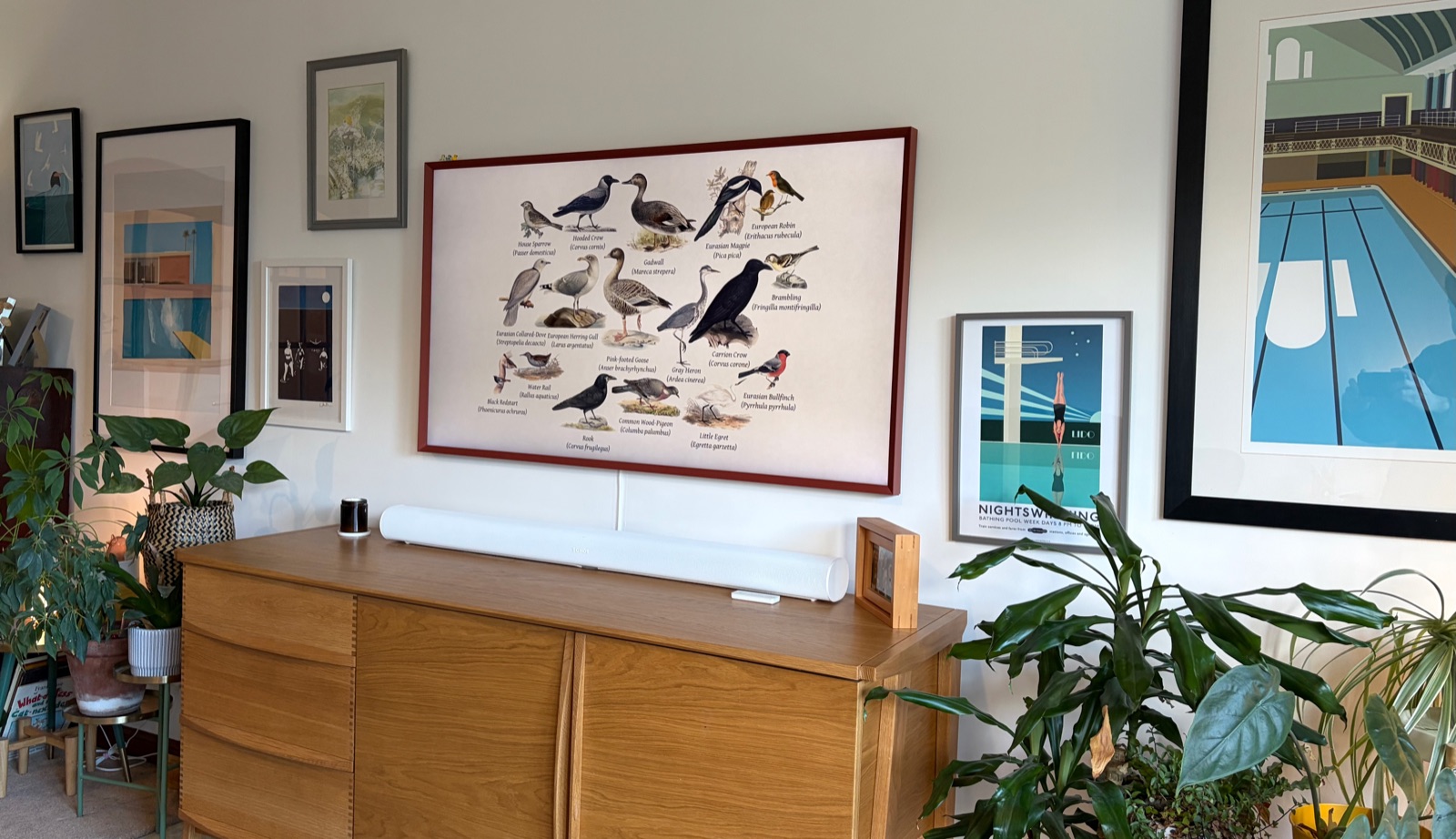
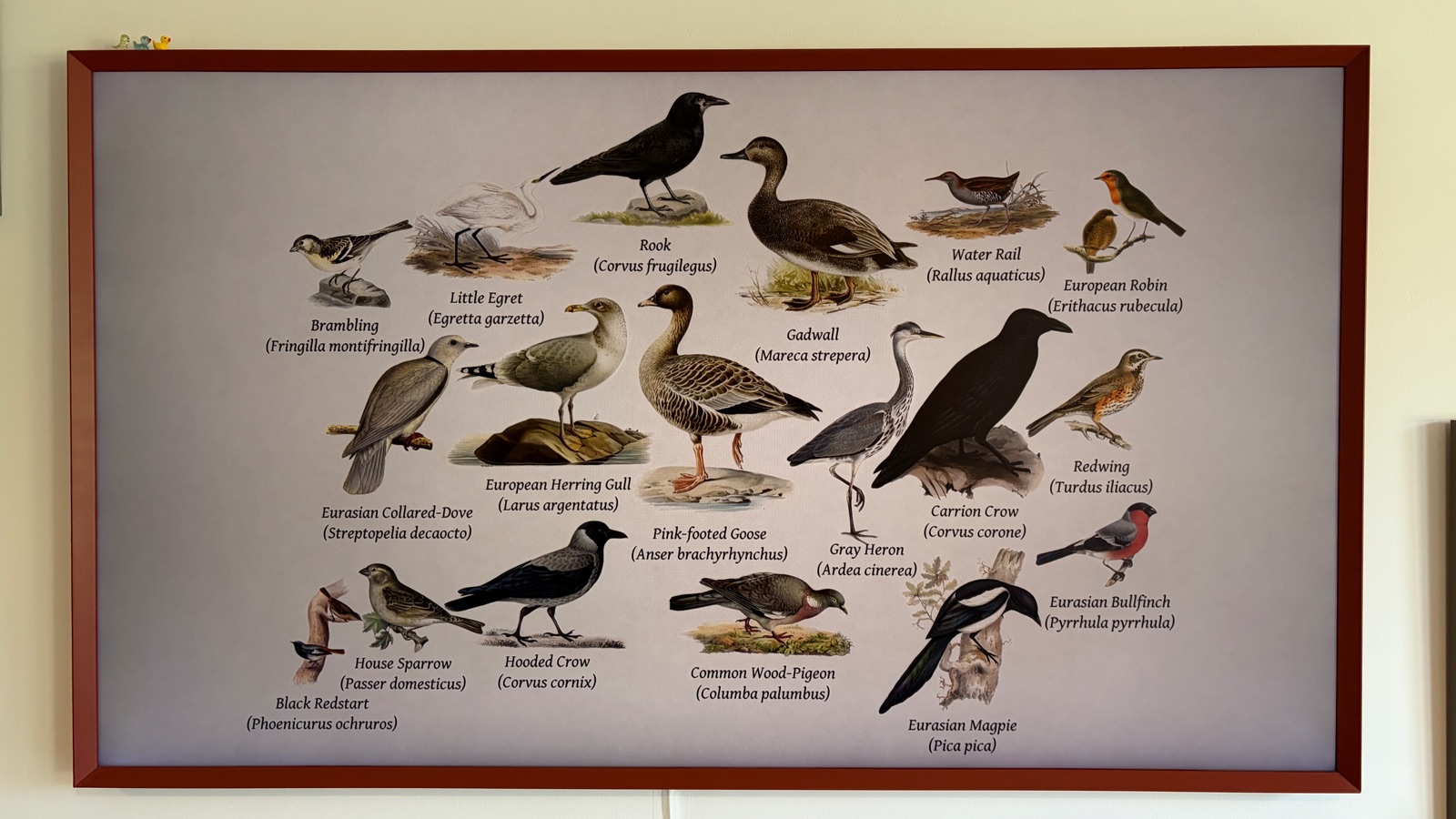
Photos by Conrad Jackson, from Fugleramme for Samsung Frame TV.
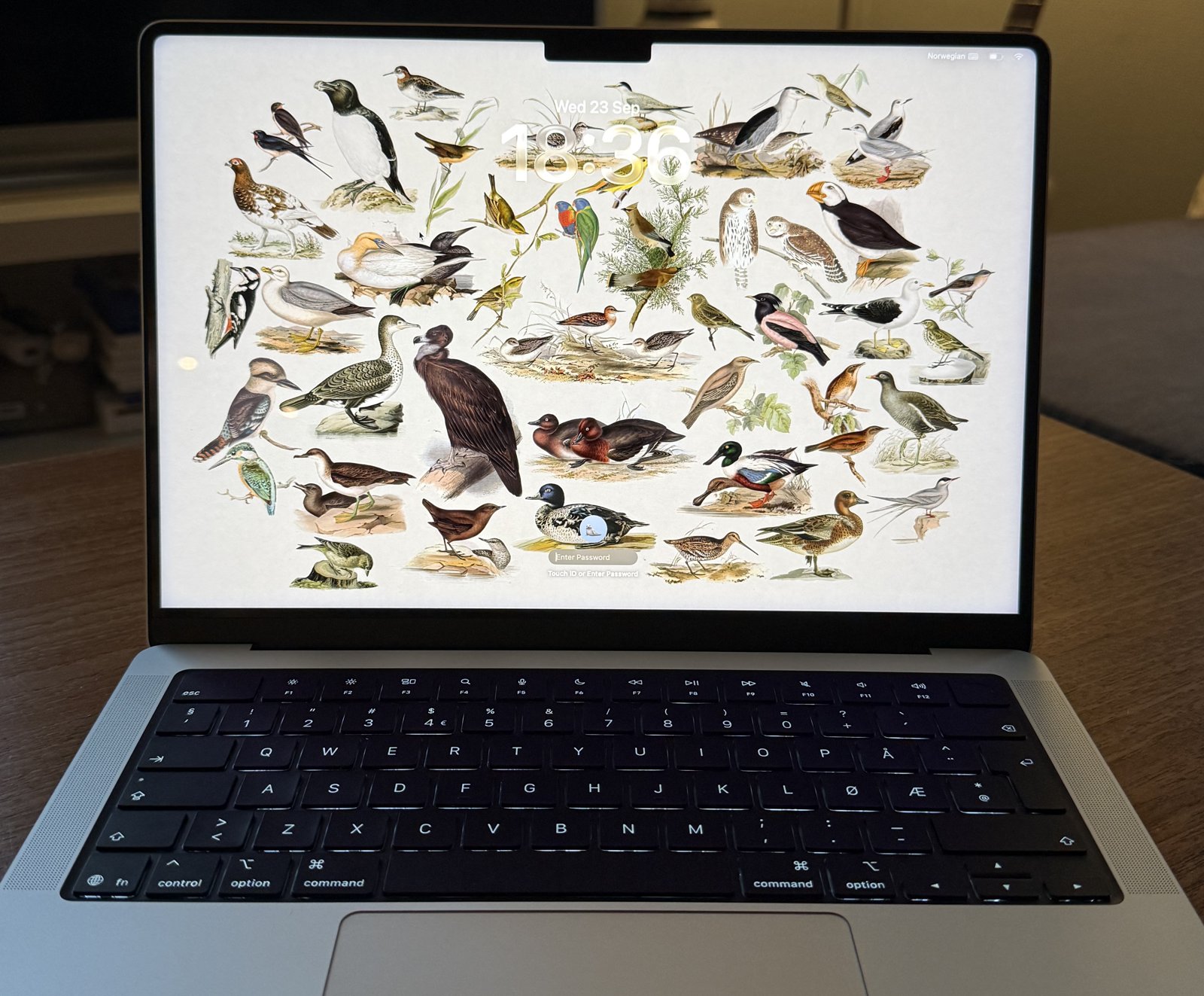
As a desktop wallpaper and/or screensaver (MacOs)
Turn off Lock to panel on the admin page and set Resolution and Aspect to match your screen, then:
curl -fsSL https://raw.githubusercontent.com/arnegiacomo/fugleramme/main/examples/wallpaper-macos.sh | sh -s -- http://<your-fugleramme-address>:8080
Add --every x after the address to fetch every x minutes (default 15).
The five last rendered pages stay in ~/Pictures/Fugleramme.
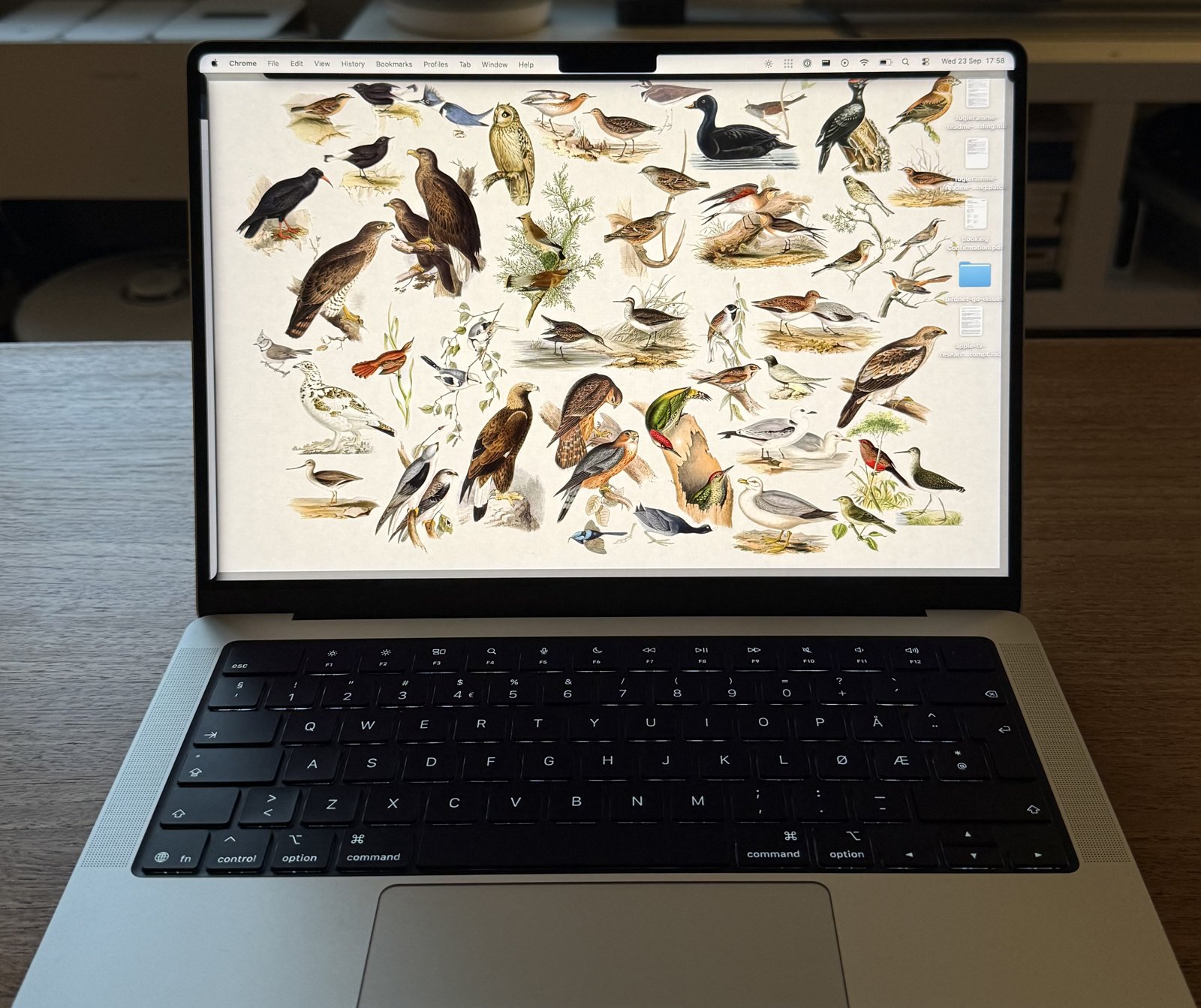
For the screen saver, open System Settings, Screen Saver, set Use Screen Saver to Custom and pick Photos under Other. Under Options, choose the Fugleramme-folder as the source. The screen saver reads the folder when it starts and will shuffle between the 5 last renders.
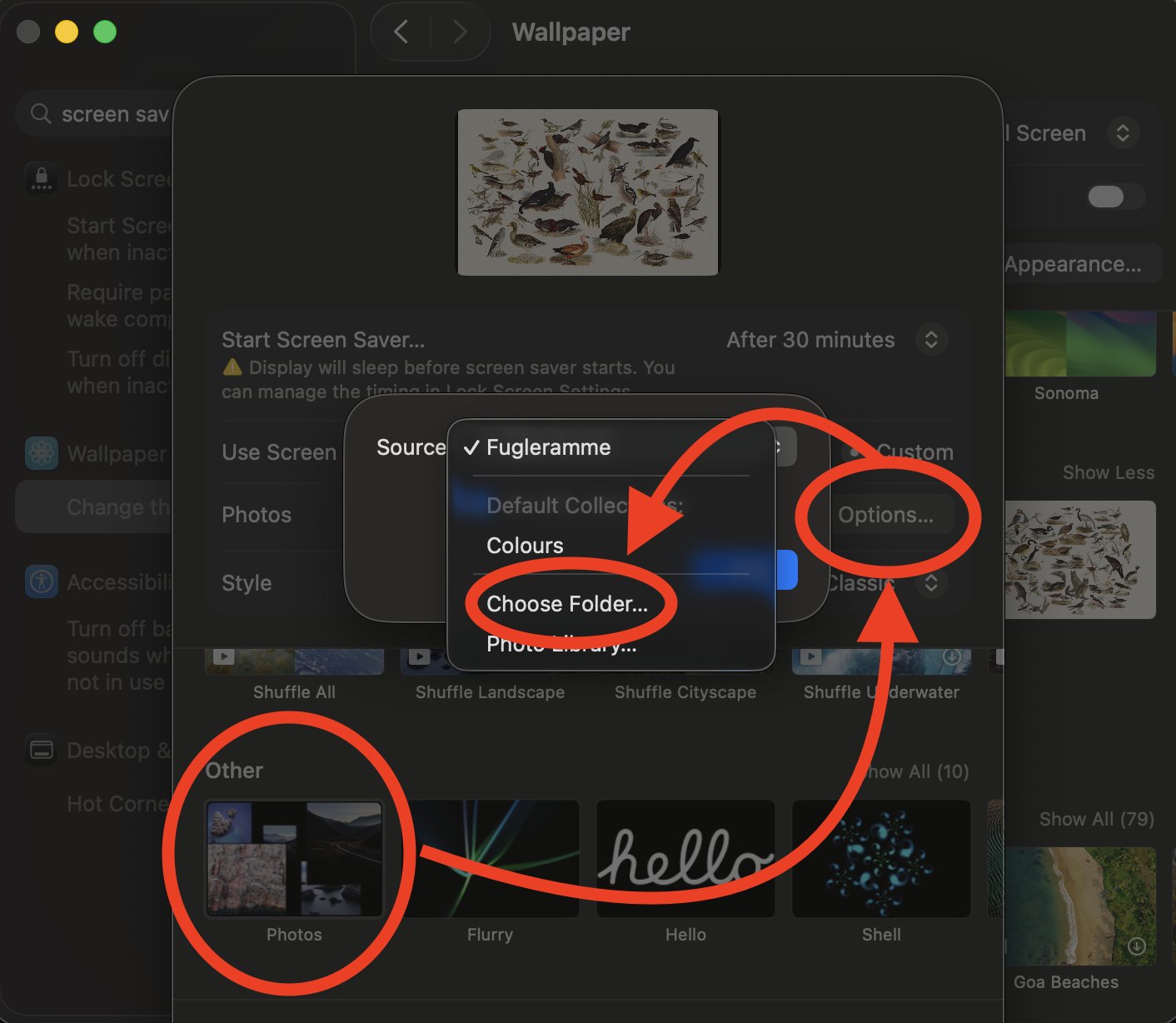
It should look something like:
Not set fugleramme up yourself yet? Point it at a demo, https://fugleramme.arnegiacomo.dev or any showcase address.
Run this to disable:
sh examples/wallpaper-macos.sh --remove